Control Scheme
Choose the type of activity you have in mind and look up its controller layout group.
A practical reference to the GTA VI settings menu. Browse by category, search for a setting or jump straight to a common task.
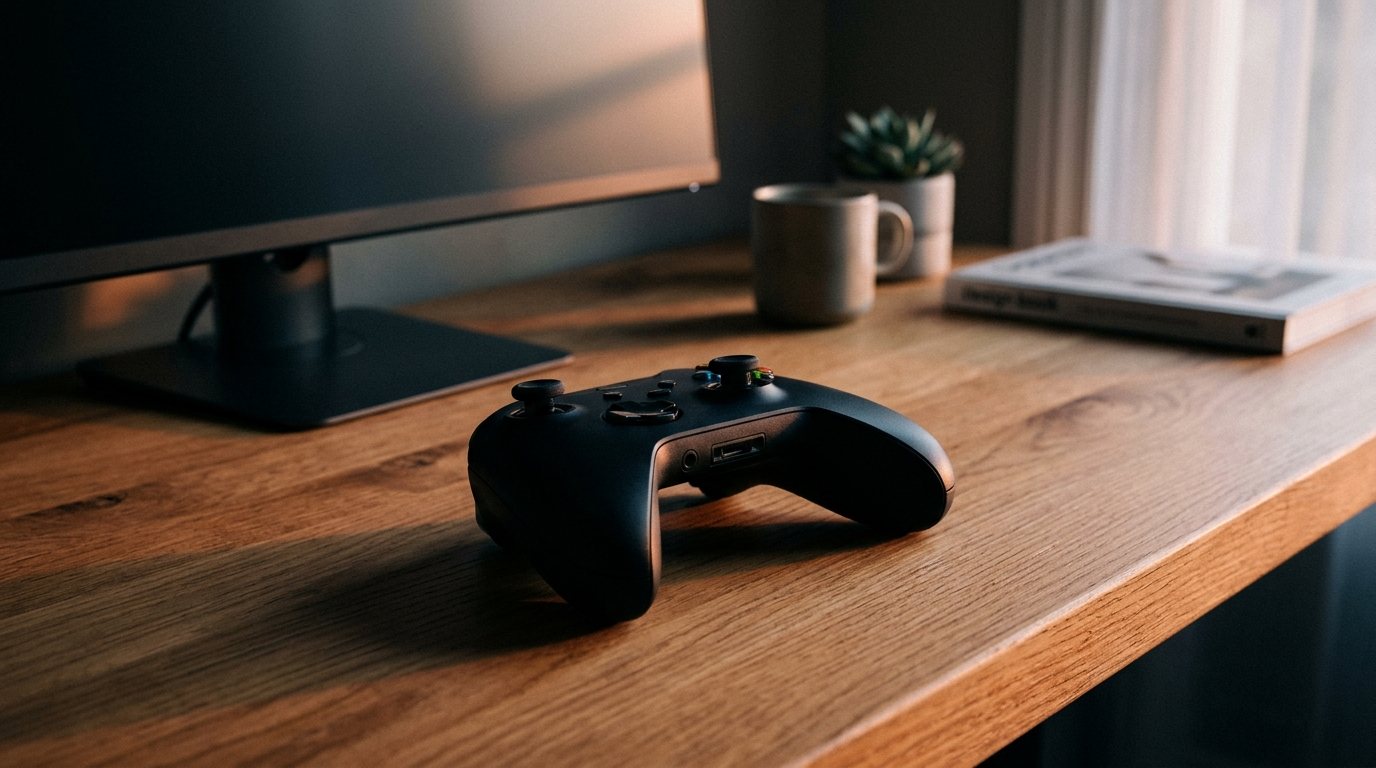
Search the settings groups, pick your platform and follow the menu path in-game. We’ll keep the names close to Rockstar’s published guide, so it’s easier to find the same place on your screen.
Look for options related to readability, captions, navigation, notifications and other on-screen information.
Rockstar also documents Restore All and Restore Default options at the bottom of the Settings screen. Check the prompt carefully before confirming a reset.
Built for PlayStation 5 and Xbox Series X|S players, this menu finder maps the eight settings categories documented in Rockstar Games Support along the in-game path Pause Menu > Settings. Use it to locate controller layouts, sensitivity, accessibility, readability, captions, camera comfort and audio options without guessing where each group lives.
Choose the type of activity you have in mind and look up its controller layout group.
Find the documented sensitivity and inverted-control groups. The official guide also lists DualSense wireless controller features for PS5 players.
Browse the groups Rockstar lists for combat, movement and accessibility.
Find the display and visual-effects groups, including the high-contrast shader reference.
Look for options related to readability, captions, navigation, notifications and other on-screen information.
Browse camera groups for different situations, including the Comfort category.
Find the audio setup, volume and narration groups.
This area contains general and legal information regarding Rockstar Games.